Grid bot for Hyperliquid and Aster
Prow's Grid bot rests buys below the price and sells above it, inside a range you set, and earns one step on every swing. A stop loss is always on.
 Hyperliquid
 Aster
- Stop loss always on
- The key can't withdraw
Bots are switched on account by account. Any Prow account can open the builder.
How a grid earnsAn example with 5 grids
The dashed sell at $100 is placed when the buy at $98 fills.
Every round trip earns one step
+2.04% a round trip
Buy at $98, sell at $100: $2 a coin, before fees
- Runs on
- Hyperliquid and Aster
- Direction
- Long, Short or Neutral
- Leverage
- 1x to 3x, isolated
- Stop loss
- Always on
- The key
- Can't withdraw
- Prow's fee on perps
- 0.01% to 0.025% a fill
What is the Grid bot for?
It is for coins that move up and down inside a range. It is not a yield product: a grid earns while the price swings and loses when the price trends, and the stop loss decides how much. The bot runs on Prow's servers around the clock, so nothing has to stay open on your device.
A coin that moves sideways
Every swing through two levels is a round trip that earns one step. The more a coin moves up and down without going anywhere, the more round trips it makes.
Many small trades
Each level is a limit order for the same coin size. An order fills when the price crosses its level, and every completed buy and sell earns its gap minus fees, so a step has to cover the fees.
A range you set, and a stop
You choose the range, the number of grids and how much to invest. The stop loss is required, and the builder checks the minimum investment, the stop and the liquidation price before you sign anything.
How does a grid bot work?
A grid cuts a price range into levels. The bot rests a buy order on each level below the price and a sell order on each level above it, in the same coin size on every level. A Long grid buys the coins for the sells above the price at the start.
When a buy fills, the bot places a sell one level higher. When that sell fills, it buys again one level lower. Each completed buy and sell is a round trip and earns one step, the gap between the two levels, minus fees. The cover shows the round trip from $98 to $100; the table shows all 5 grids of $2 between $94 and $104.
The levels can be an equal price apart (arithmetic) or an equal percentage apart (geometric, the builder's default). The range is where the grid earns: when the price leaves it, the grid has no orders left to fill, and the stop loss and the range exit setting decide what happens next.
A step has to cover the fees of its two fills. The builder refuses a grid whose smallest step is under 3 times the fees of a round trip, and warns under 0.15%.
| Buys at | Sells at | The gap | After fees |
|---|---|---|---|
| $94 | $96 | 2.13% | 2.05% |
| $96 | $98 | 2.08% | 2.00% |
| $98 | $100 | 2.04% | 1.96% |
| $100 | $102 | 2.00% | 1.92% |
| $102 | $104 | 1.96% | 1.88% |
The shaded round trip, buy at $98 and sell at $100, on 2.04 coins (about $200 a level):
$3.92 after fees
$4.08 before fees, less $0.16 to Hyperliquid and Prow
Long, Short or Neutral?
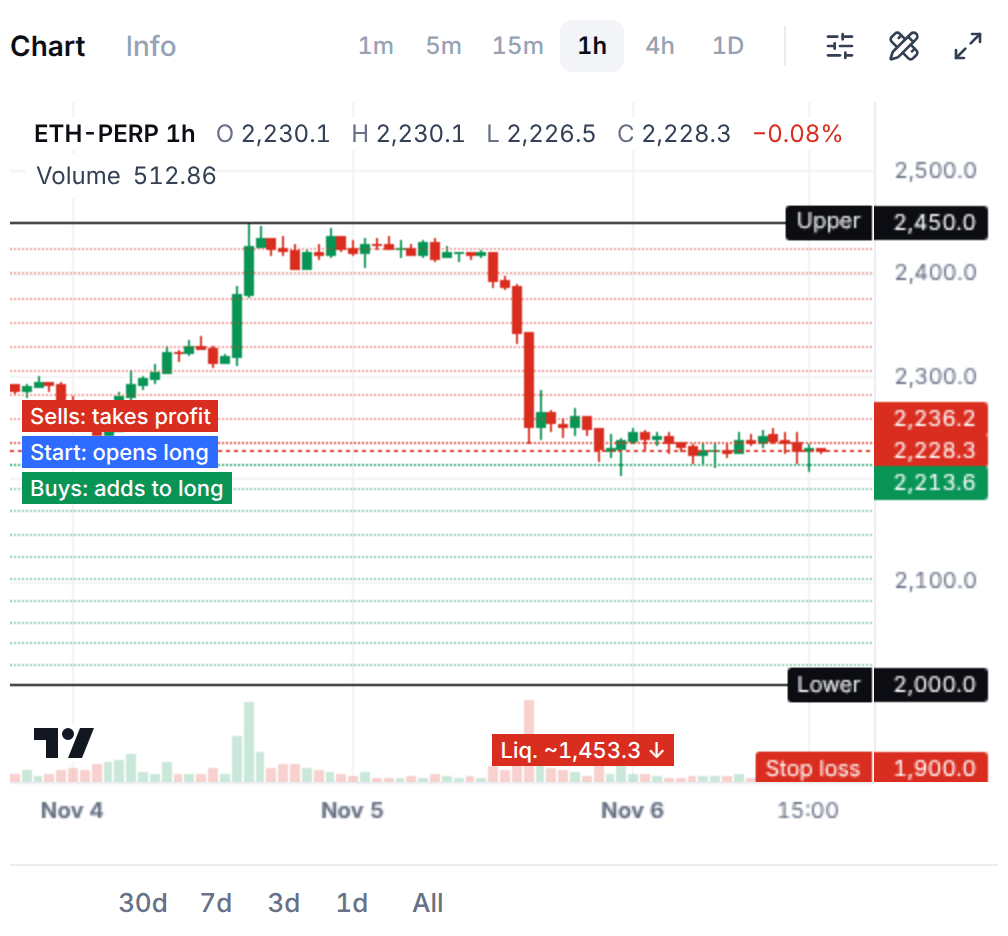
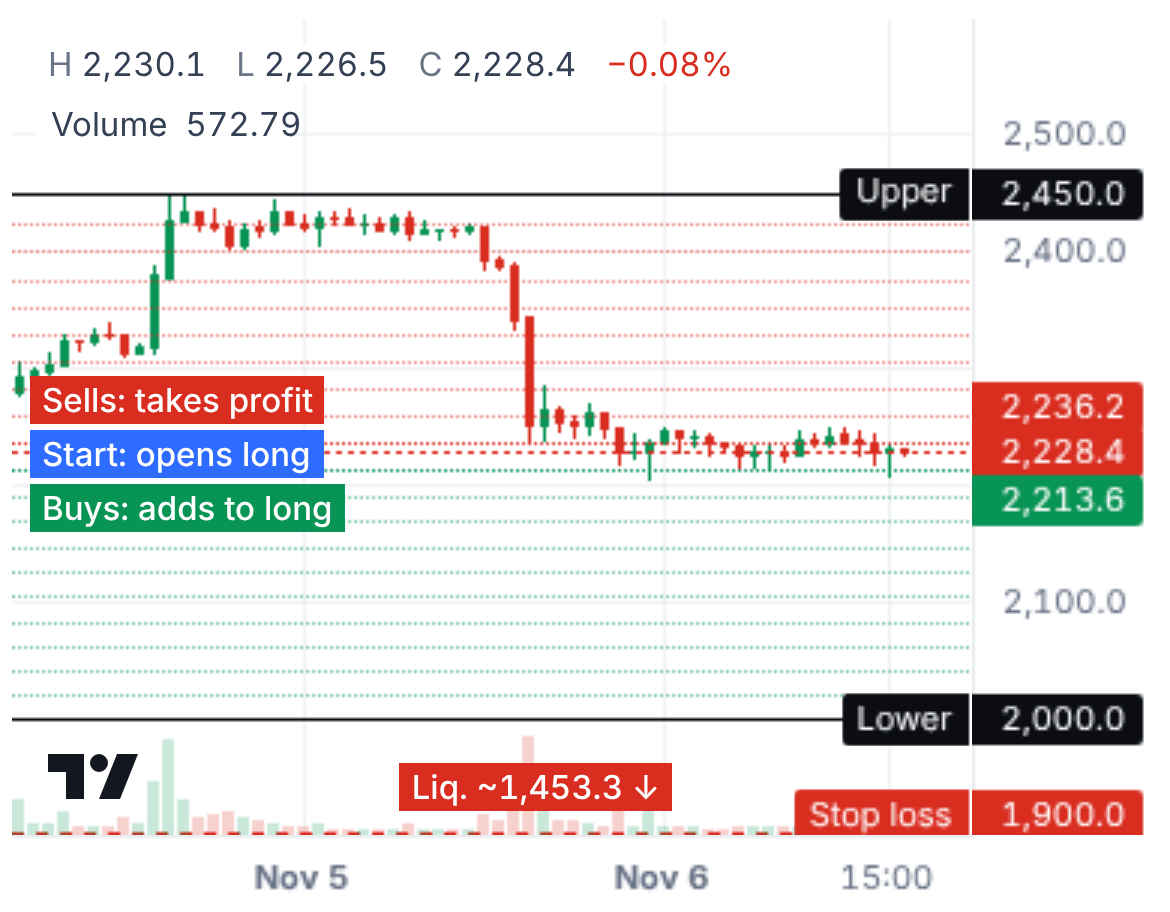
A futures grid has a direction. It decides what the grid holds at the start and which way a trend hurts it. The builder's chart labels what each side of the price does for the direction you pick.
Long
The defaultHolds a position for the levels above the price and buys more as the price falls. It earns on swings and loses when the price falls through the range. The stop sits below the lower price.
Short
Deepest markets onlyThe mirror: it sells as the price rises and holds a short for the levels below it. It earns on swings and loses when the price rises through the range. The stop sits above the upper price.
Neutral
Deepest markets onlyStarts with no position, goes short above the start price and long below it, with a stop on each side. It earns on swings in either direction and loses when the price runs through either edge.
The review warns about Short and Neutral before you sign: "Neutral and Short grids lost money most of the time when the price trended." It comes from Prow's research on past prices.
Spot grid or futures grid?
The market picker of the builder sets it, as on Trade: Futures or Spot. A spot grid has no leverage and cannot be liquidated, but it can still end up holding a coin that has fallen a long way.
| What differs | Spot grid | Futures grid |
|---|---|---|
| Where | Spot grid: Hyperliquid spot, on Prow's list of spot markets | Futures grid: Hyperliquid and Aster perps |
| Direction | Spot grid: Long only | Futures grid: Long (the default), Short or Neutral |
| Leverage | Spot grid: None, so no liquidation | Futures grid: 1x to 3x, and 5x on the deepest markets, isolated |
| At the start | Spot grid: Buys the coin for the sell levels above the price | Futures grid: Opens a position for the levels above the price (Long) |
| Your funds | Spot grid: USDC in your spot balance; the bot cannot move funds | Futures grid: Free margin on the account |
| Funding | Spot grid: None | Futures grid: Paid or collected while the bot holds a position |
| When you stop it | Spot grid: Sell the coin, or keep it | Futures grid: Close the position, or keep it |
What does the bot do once it starts?
Four things, and nothing else. It never moves money, and its stop loss waits on the venue.
- 01
It places the grid
A Long grid buys the coins it needs for the sell levels above the price in one immediate order, then rests a buy order on every level below it. A Short grid is the mirror, and a Neutral grid starts with no position. The grid's other orders are limit orders that rest on the order book, so they pay the maker fee.
- 02
Each fill places the next order
When a buy fills, the bot places a sell one level higher. When that sell fills, it places the buy again one level lower. Every completed pair earns one step minus fees, and the same coin size sits on every level, so a pair earns the gap between its two levels.
- 03
A stop loss waits on the venue
A stop order rests on Hyperliquid or Aster, below the range for a Long grid, above it for a Short grid and on each side for a Neutral one. If the price reaches it, the bot closes its position and stops. Because the order is on the venue, it can still fire if Prow's servers are down.
- 04
It pauses instead of fighting you
If you trade the bot's market by hand or cancel one of its orders, the bot pauses and keeps its stop. Resume rebuilds the orders from what it holds. Completed pairs come as one notice at most every 30 minutes, and a futures grid pays or collects funding while it holds a position.
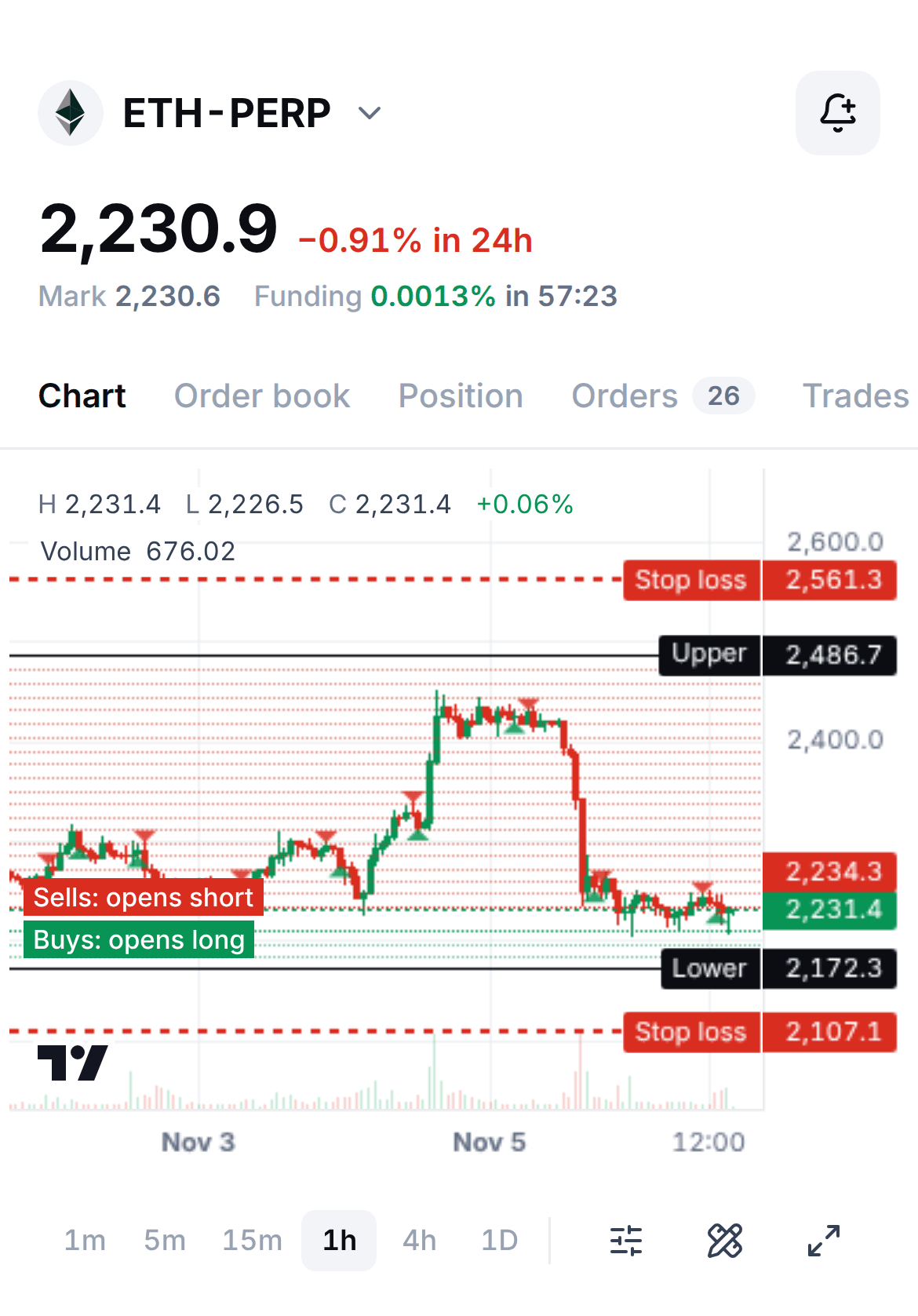
What do the numbers look like?
The figures use one grid: $1,000 at 1x on a coin at $99, 5 grids of $2 between $94 and $104, with the stop at $90. The builder starts at 20 grids, so these steps are bigger than a default grid's; the arithmetic is the same.
$3.92
A round trip, after fees
Buy at $98 and sell at $100 on 2.04 coins: $4.08 before fees. Hyperliquid's maker fee (0.015%) and Prow's (0.025%) on both fills take $0.16. Your own fee tier may be lower.
−$74.63
If the price falls to the stop
The bot holds 10.20 coins at $97.20 on average, and the stop closes them at $90: $73.47 on the coins plus $1.16 in fees, before slippage.
About 19
Round trips to earn the loss back
At $3.92 each. A grid earns a little many times and can lose more than that at once, which is why its stop loss is always on.
Prices are before slippage, and the start-up buy and the stop are taker orders. On Aster's USDT perps the base-tier maker fee is 0% and Prow's fee is 0.01%, so the same round trip costs less there. Your own fee tier may be lower than the base tier.
What happens when the price leaves the range?
Above the range, a Long grid has sold every coin it bought. It holds cash, keeps what it earned and waits: it earns nothing until the price is back inside.
Below the range, every buy has filled. The bot holds the most coins it ever holds, at their lowest prices, and sits at a loss until the stop loss closes it or the price comes back. The picture is that moment in the example, with the stop at $90 closing the position.
The setting If the price leaves the range says what the bot does at the edge:
- Keep running, the default, waits for the price to come back, with the stop still protecting it.
- Stop and close closes the position at market.
- Stop and keep stops the bot and keeps the position with its stop.
A Trigger price is for a price that starts outside the range: the bot places nothing until the price crosses it.
When the price falls through the rangeThe same grid
The stop ends the grid at a loss
−$74.63 with fees
10.20 coins bought at $97.20 on average, closed at $90, before slippage
Which settings does a grid bot have?
A run length (1 to 3 days, 3 to 15 days or 25+ days) fills most of them in from the coin's recent prices. Everything else sits under Manual adjustment and Advanced, and the docs explain every field.
Direction
Default: Long
Investment
What the bot may use
Leverage
Default: 1x
Run length
Fills in the rest
Grids
Default: 20
Lower and upper price
Default: 10% below and above the price
Grid type
Default: Geometric
Stop loss
Default: 5% below the lower price
Trigger price
Default: Off
Take profit
Default: Off
Max loss
Default: 30% of the investment
Range exit
Default: Keep running
How do I start a Grid bot in Prow?
You need a Hyperliquid or Aster account linked in Prow with free margin for the grid, or USDC in your Hyperliquid spot balance for a spot grid. The bot cannot move funds, so deposit first. Bots run only on the markets on Prow's list, the ones with a deep order book, and one bot can run on a market on an account at a time.
- 01
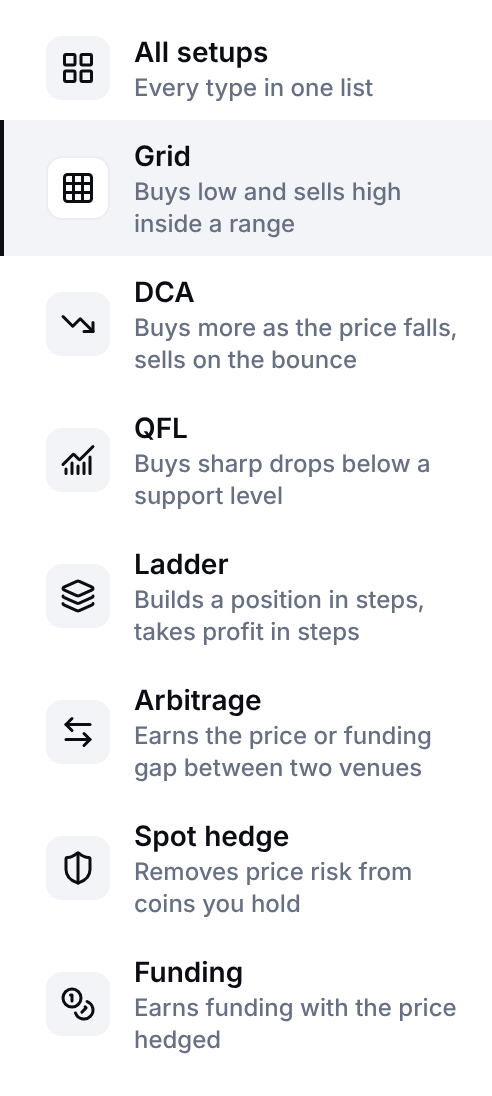
Open Bots, press Start a bot and pick Grid
The list shows ready settings for liquid coins: tap one and the builder opens with it filled in. Or press Set up myself and pick the market there.
- 02
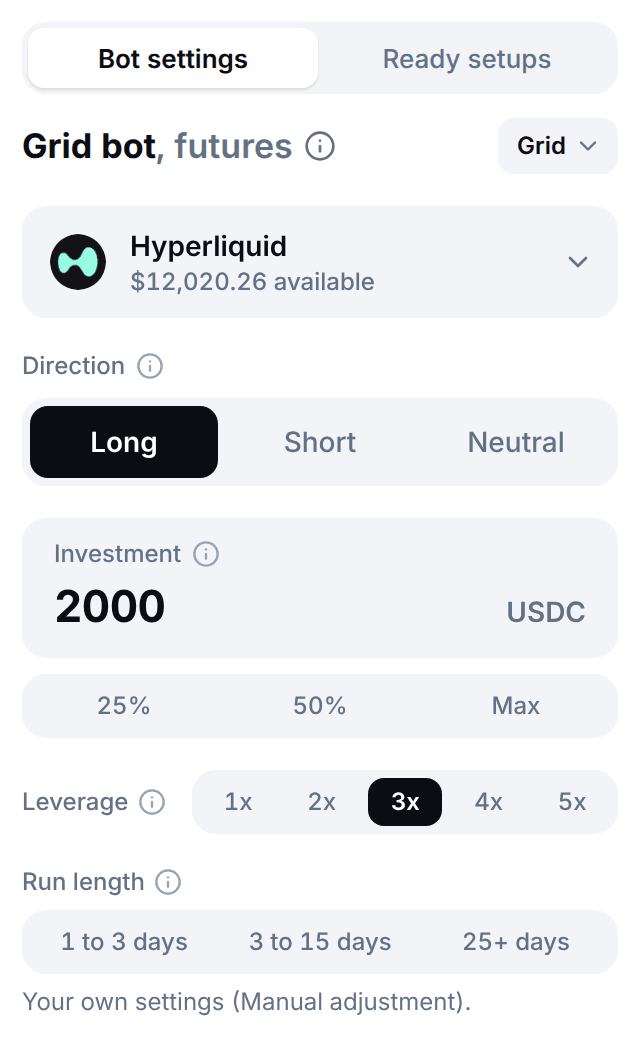
Pick the market and the direction
The market is picked in the header, as on Trade: Futures on Hyperliquid or Aster, or Spot on Hyperliquid. Direction is Long, Short or Neutral on futures.
- 03
Enter the investment and the leverage
Investment is what the bot may use. 25%, 50% and Max fill in a share of what is available. Leverage starts at 1x.
- 04
Pick a run length, or open Manual adjustment
1 to 3 days, 3 to 15 days or 25+ days fill in a range, the number of grids and a stop fitted to the coin's recent prices. Manual adjustment and Advanced hold every setting listed above.
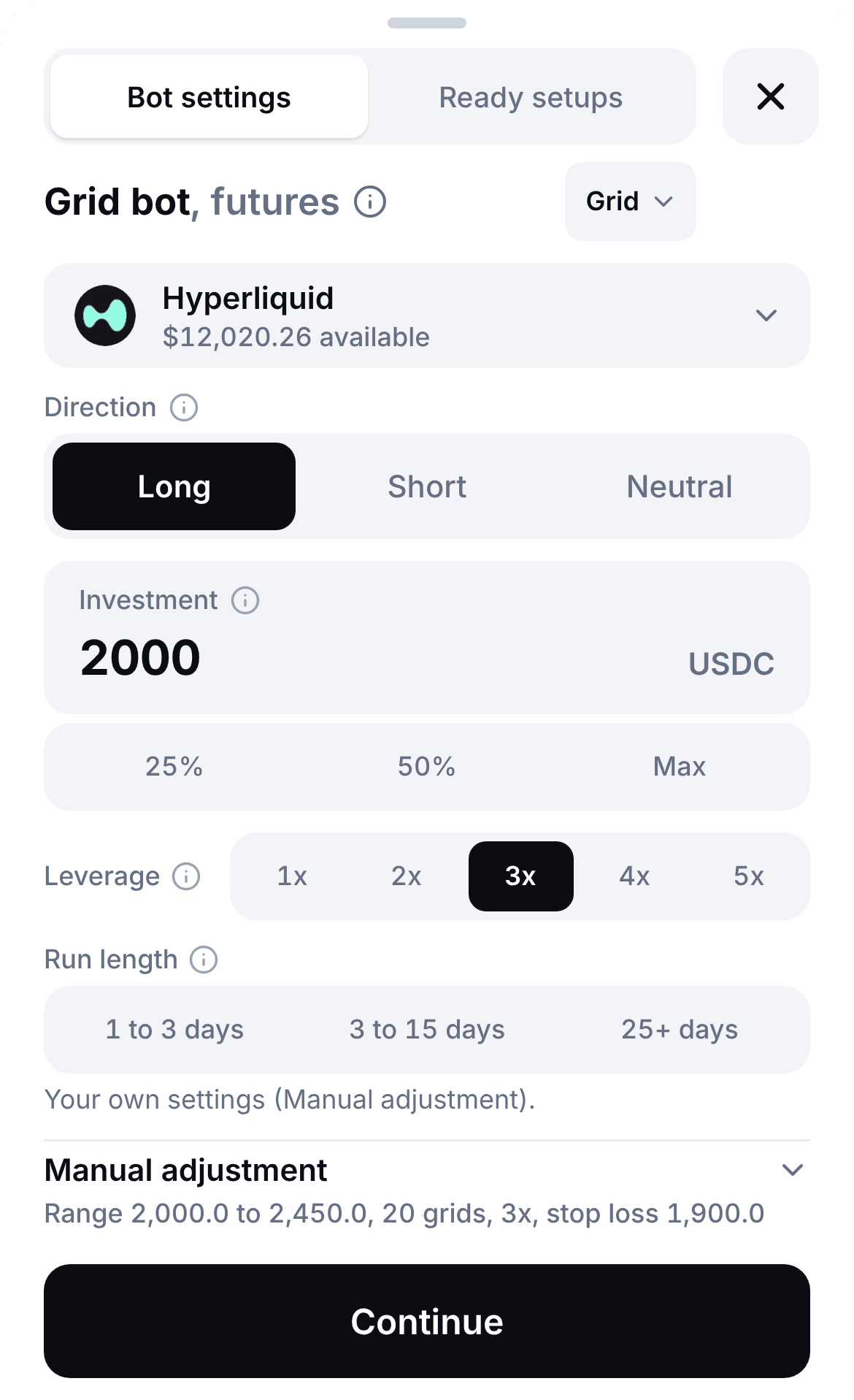
On a phone, the Grid builder on Nov 6, 2026: the direction, the investment, the leverage, the run length and the range. The figures are a sample account's. - 05
Press Continue and read the review
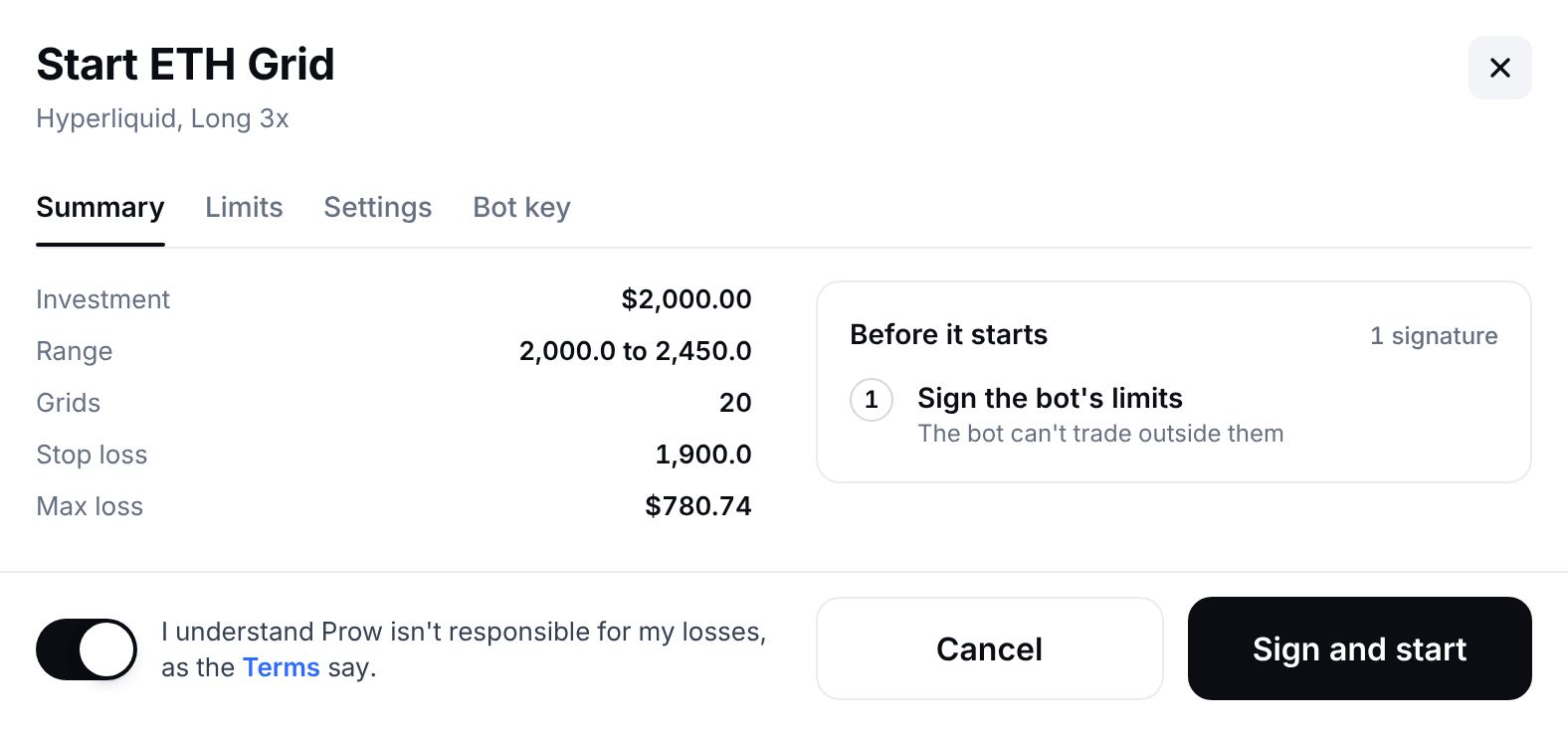
Continue checks the minimum investment, the stop and the liquidation price. The review is named after your coin, like Start HYPE Grid, and has four tabs: Summary, Limits, Settings and Bot key. Turn on the risk acknowledgement.
- 06
Press Sign and start
Before it starts lists up to three signatures: Enable bots on Hyperliquid (or Aster) for the account's first bot, Approve the Prow fee once, and Sign the bot's limits. Prow's servers refuse any order outside those limits. Open bot then shows its page.
What does a running grid show, and how do I stop it?
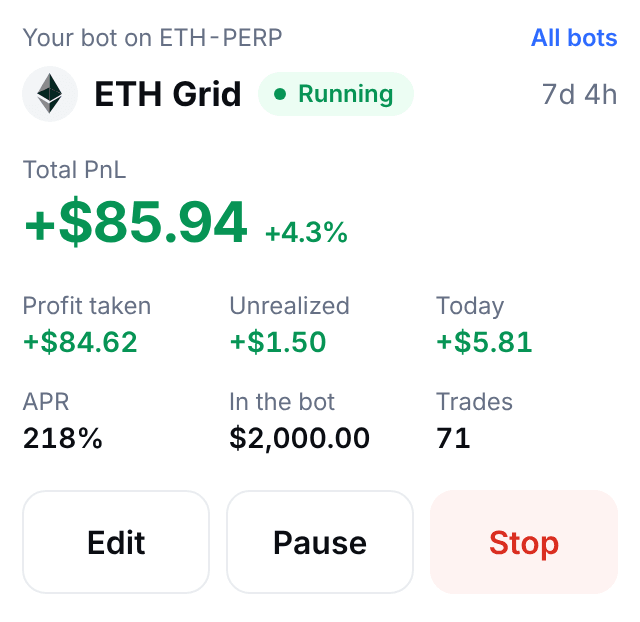
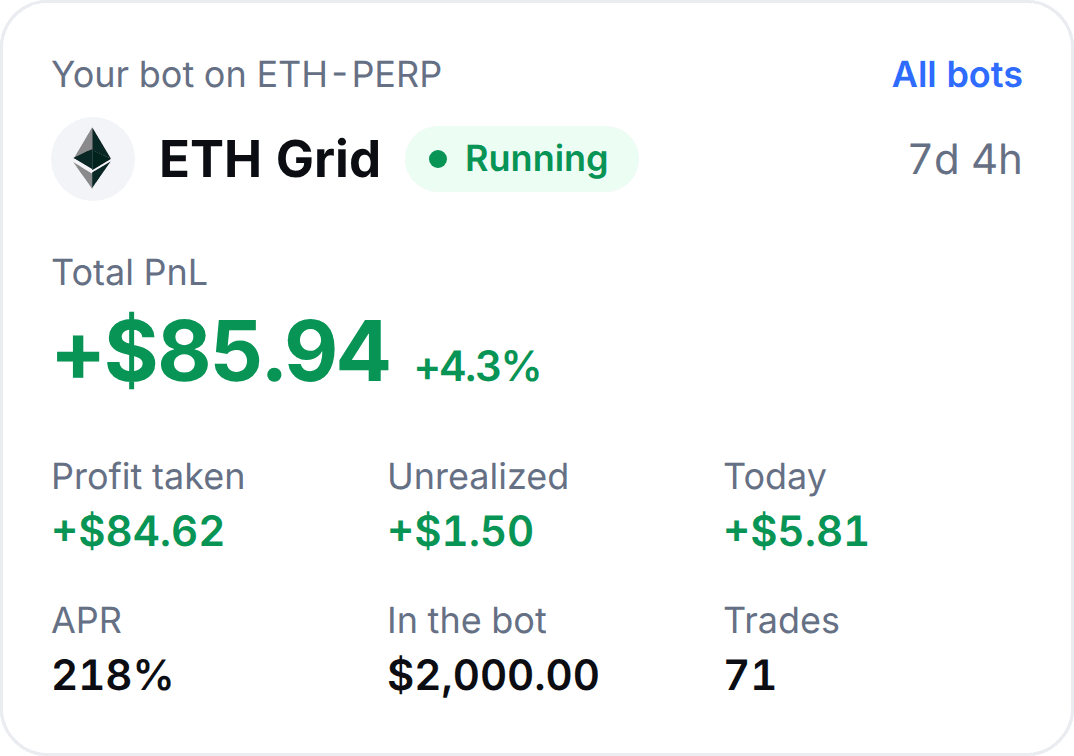
The bot's page looks like Trade: the market's chart with the grid's levels and fills, and the bot's panel with its figures and its buttons. Open bot shows it when the grid starts, and My bots lists it after that.
The figures
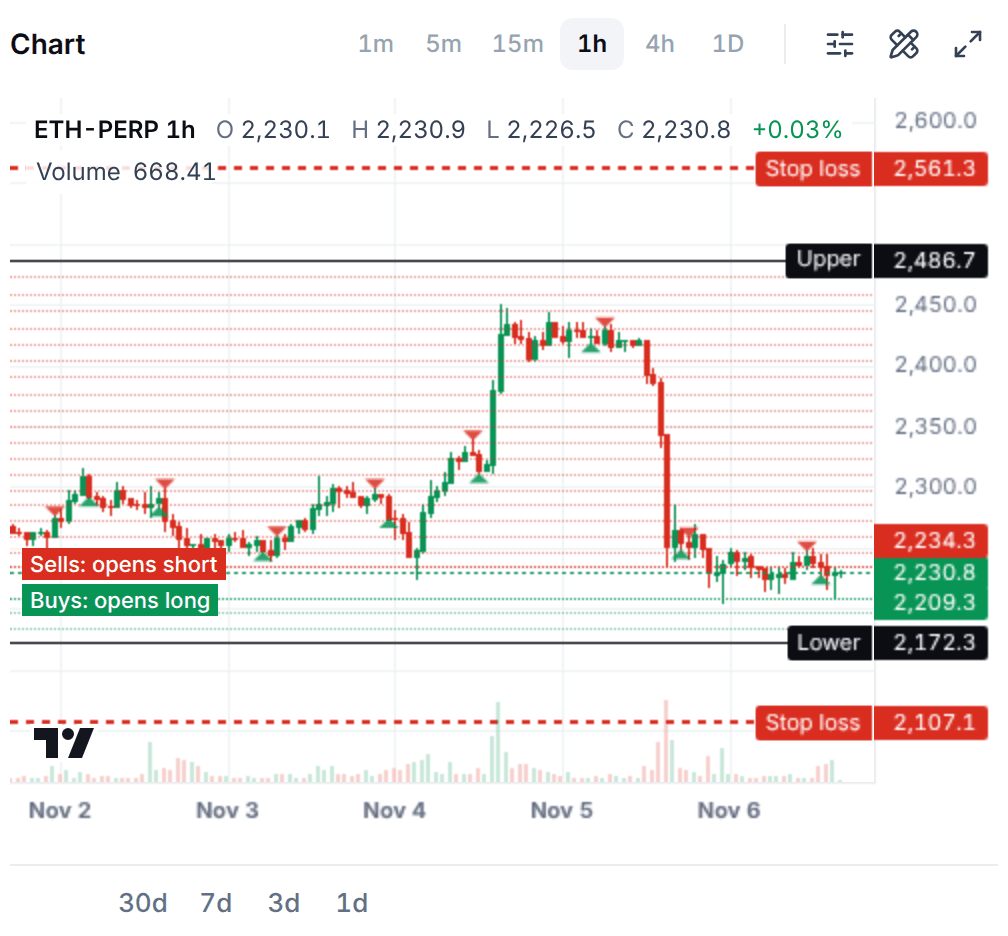
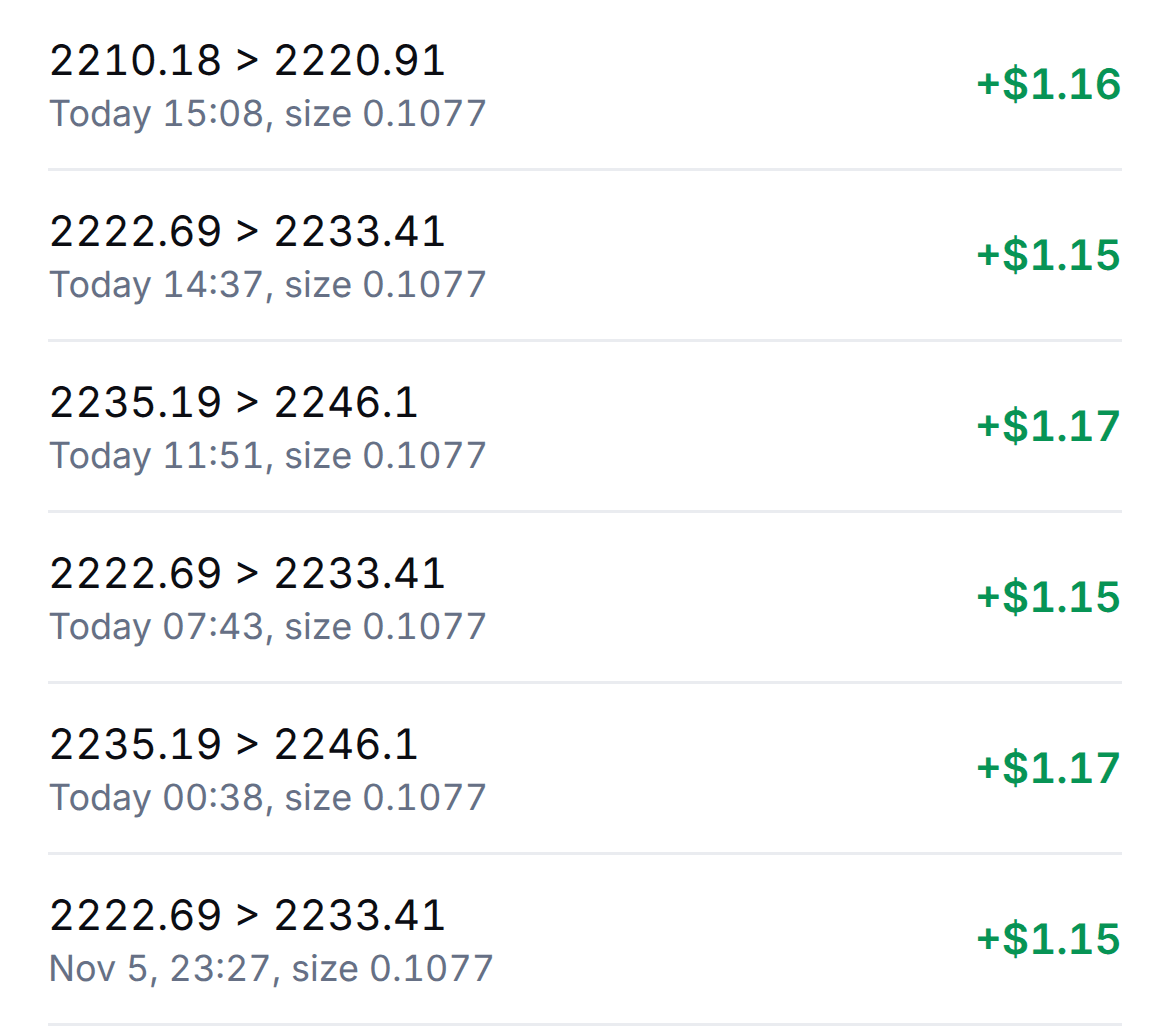
Total PnL, with Profit taken, Unrealized, Today, APR (after a day), In the bot and Trades. The chart shows the grid's orders and fills and the stop loss, and the Position tab lists the size, entry, mark and liquidation price with how far away it is.
Orders and trades
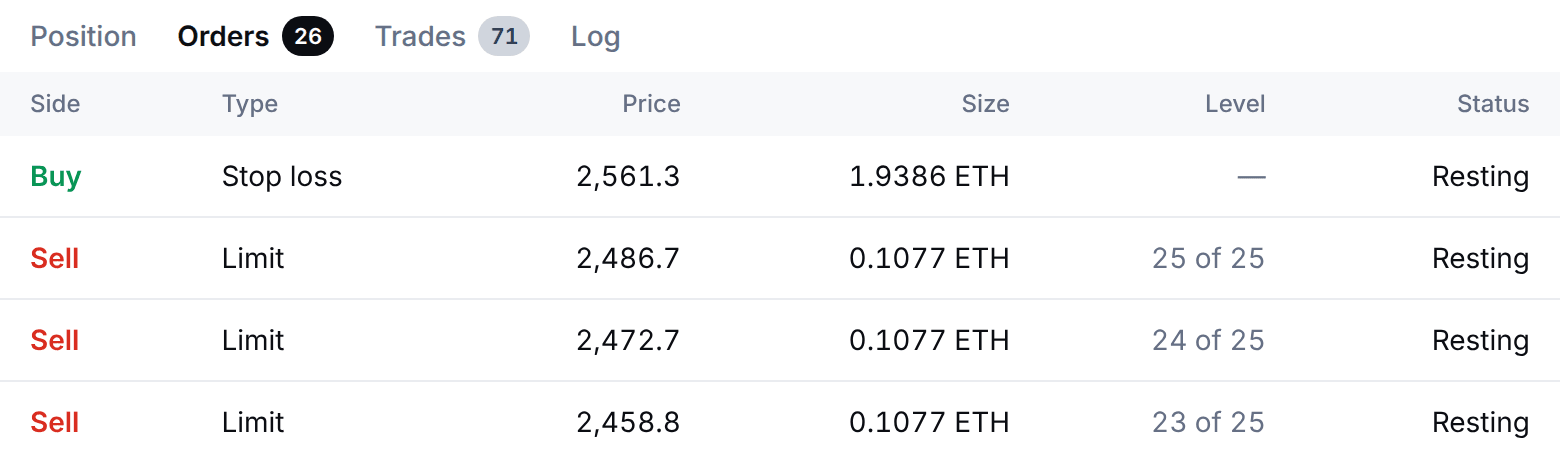
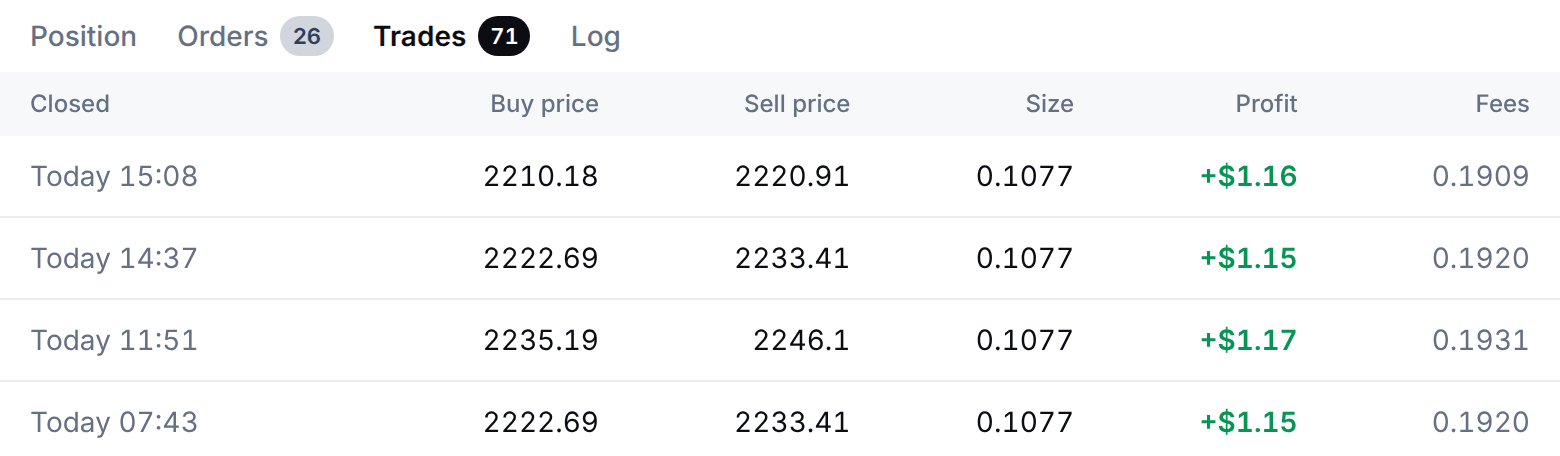
Orders lists what the bot has on the venue, read-only: cancelling one elsewhere pauses the bot. Trades lists each completed pair with when it closed, its buy price, sell price, size, profit and fees.
Pause, Edit and Stop
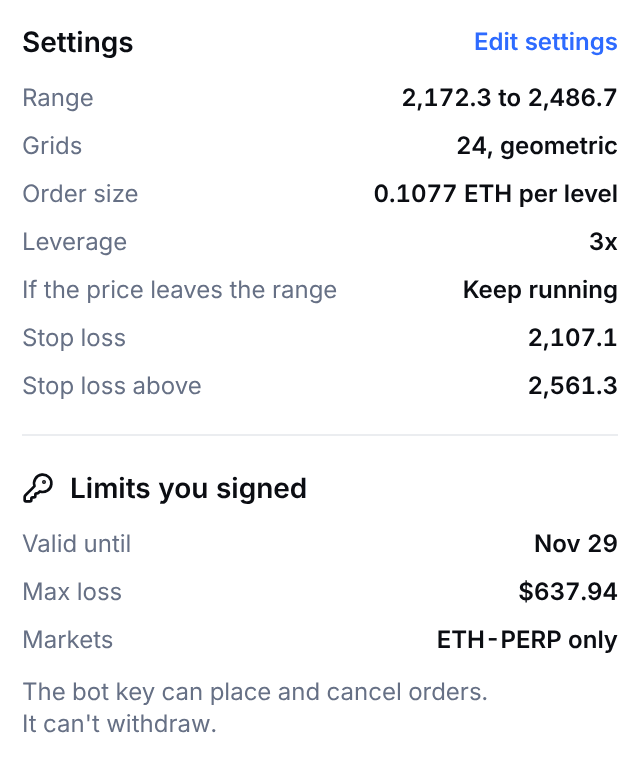
Pause cancels the buy and sell orders and keeps the position and the stop. Edit changes the name, the take profit, the trailing take profit and what happens if the price leaves the range; the rest is part of the limits you signed, so use Copy settings and start a new grid. Stop asks what happens to the position: Close the position at market, Keep the position with its stop or Keep the position without a stop. A spot grid sells its coin or keeps it.
Renewing
The limits last 30 days at most. From 3 days before they end the page shows Renew limits: one signature keeps the bot running with the same settings. The Prow Bots key lasts 30 days too and is renewed with one signature. If either lapses, the bot cancels its orders an hour before and pauses, with its stop kept on the venue.
What do I control, and what can Prow not do with my keys?
Your money stays in your own account. The venue, not Prow, stops the key from withdrawing: it has no withdrawal permission. Prow's servers check every order against the limits you sign, and if they go down, the grid's stop stays on the venue. More in the Prow Bots key.
You set
- The market, futures or spot, and the venue
- Long, Short or Neutral on futures
- The investment and the leverage
- The range, the number of grids and the grid type
- The stop loss and the max loss
- A trigger price, a take profit and what happens if the price leaves the range
- Pause or stop, at any time
You sign
- One Prow Bots key for each account, with its first bot. It lasts 30 days and you renew it with one signature.
- The Prow fee, once for the account.
- The grid's limits, 30 days at most: the market, the investment, the leverage, the max loss, the stop and the range. You renew them with one signature on the bot's page.
What the key can't do
- Withdraw your funds
- Send funds to another address or account
- Approve another key
- Place an order outside the limits you signed
The check against your limits runs on Prow's servers, not on the venue. On Aster the key only works from them.
When does a grid not pay?
A grid earns a little many times and can lose a lot once. The stop loss is what caps it.
A trending market
A Long grid buys on the way down, so the further the price falls the more coins it holds, and the stop closes them at a loss. A Short grid is the mirror, a Neutral grid loses when the price runs through either edge, and a trend can be longer than any range.
Fees and funding
A grid trades often, and each fill carries the venue's fee, plus Prow's on every perp fill and every spot sell. A futures grid also pays or collects funding while it holds a position, every hour on Hyperliquid: a Long grid that holds a position while longs pay is paying for it.
Leverage adds risk
Gains and losses both grow with leverage, and liquidation comes closer. The builder checks that liquidation would come after your stop and refuses the grid if it could not. 1x is the default, 3x the most on most markets.
A stale range
A range that held last month may not hold this month, and the grid earns nothing while the price is outside it. The range of a running grid cannot be edited: stop the bot and start a new one. Its orders and position also use your account's free balance, and if something else uses that money, the bot pauses.
Questions about the Grid bot
What is a grid trading bot, and how does it work?
A grid bot cuts a price range into levels and trades the swings between them. It rests a buy order on each level below the price and a sell order on each level above it. When a buy fills, it places a sell one level higher, and when that sell fills it buys again one level lower. Every completed buy and sell earns one step, minus fees, and the same coin size sits on every level. Prow's Grid bot does this on Hyperliquid and Aster perps, with a stop loss that is always on, and on Hyperliquid spot markets.
Read more: How to run a grid bot on Hyperliquid (no code), Grid bot in the docs
Is grid trading profitable?
Sometimes, and only while the price swings inside the range. A round trip earns a small step: $3.92 after fees on the $1,000 of the page's example. When the price trends out of the range, the grid keeps buying the fall and the stop closes it at a loss of $74.63, about 19 round trips of profit. A grid has no edge of its own: it is a way to trade a sideways market, not a source of income. Neutral and Short grids lost money most of the time when the price trended, in Prow's research on past prices.
What settings does a grid bot have?
A price range (a lower and an upper price), the number of grids, the grid type (arithmetic or geometric), an investment, a direction (Long, Short or Neutral) and leverage on futures, and a stop loss. The builder starts with the range 10% either side of the price, 20 geometric grids, 1x and a stop 5% below the range. A run length (1 to 3 days, 3 to 15 days or 25+ days) fills the rest in from the coin's recent prices. Under Manual adjustment you can add a trigger price, a take profit, a max loss and a choice of what happens if the price leaves the range.
Read more: Every setting, in the docs
How many grids should I use, and which grid type?
Enough that each step covers its fees, and no more. The step is the gap between two levels. Prow refuses a step under 3 times the fees of a round trip, warns under 0.15%, and the Grids slider stops where the step would fall under the fees. More grids mean smaller steps, more trades and a higher minimum investment, because every level is an order of at least the venue's smallest size (on Hyperliquid $10, and the builder asks for 10% more; Aster sets its own for each market). The builder starts at 20 and allows 2 to 150 on Hyperliquid and 2 to 100 on Aster. Geometric keeps the gap an equal percentage, arithmetic an equal price: in the page's example, arithmetic steps run from 2.13% at the bottom to 1.96% at the top.
What happens when the price leaves the range?
Above the range a Long grid has sold every coin it bought, so it holds cash and earns nothing until the price is back inside. Below the range it has bought every level and holds the most coins at the lowest price, and the stop loss closes it when the price reaches it: in the page's example that is a loss of $74.63, 7.5% of the investment. The setting If the price leaves the range lets the bot Keep running (the default), Stop and close the position, or Stop and keep the position with its stop. A trigger price makes the bot wait outside the range until the price crosses it.
Long, Short or Neutral: which grid should I run?
Long is the default: it holds a position for the levels above the price and buys more as the price falls, so it loses when the price falls through the range. Short is the mirror and loses when the price rises through it. Neutral starts with no position, goes short above the start price and long below it, with a stop on each side. Short and Neutral run on the deepest markets only, such as BTC and ETH, and the review warns about them before you sign: "Neutral and Short grids lost money most of the time when the price trended." It comes from Prow's research on past prices.
Can the bot withdraw my money?
No. It trades with a key called Prow Bots. The key can place and cancel the bot's orders and set leverage, but it cannot withdraw, send funds to another address or account, or approve another key. On Aster it can also move funds between your own spot and futures balances, which Prow's servers never do for a bot. Prow's servers check every order against the limits you sign for the bot and refuse the rest, and the bot's stop loss rests on the venue. The key expires after 30 days unless you renew it with one signature, and on Aster it only works from Prow's servers.
Read more: The Prow Bots key, Hyperliquid agent wallets: why a trading key can't withdraw
What does the Grid bot cost?
The venue's fee on every fill, plus Prow's fee on every perp fill the bot makes: 0.025% on Hyperliquid and 0.01% on Aster. On Hyperliquid spot Prow's fee is on sells only, never on buys. A grid's resting orders pay the maker rate, so on Hyperliquid at the base tier a round trip in the page's example costs $0.16 (0.015% to Hyperliquid and 0.025% to Prow on each of its two fills) out of $4.08. The start-up buy and the stop are taker orders and cost more. There is no subscription. Prow's 0% launch fee, until Dec 31, 2026, is for orders you place yourself in the app: a bot pays the fee from its first fill. A futures grid also pays or collects funding while it holds a position.
Read more: Fees
How is it different from the grid bots on Pionex or Binance?
Pionex and Binance run grid bots inside the exchange, so your funds sit in an account there: Binance's Spot Grid uses a Trading Bots Account that is separate from your Spot Account, and Pionex's bot adds no fee beyond its trading fee, 0.05% a trade at the standard level. Binance allows 2 to 500 grids on a Spot Grid. Prow's Grid bot runs on your own Hyperliquid or Aster account: your funds stay in it, the bot trades with a key that cannot withdraw, and its stop loss rests on the venue. The exchanges offer more markets and more bot types; Prow's bots run on markets with a deep order book, with 2 to 150 grids on Hyperliquid and 2 to 100 on Aster. Checked on Nov 6, 2026.
Read more: Binance: what Spot Grid trading is, Pionex: grid trading bot FAQ, Trading bots for Hyperliquid: Prow, Bitsgap, 3Commas
Can I use it today?
Bots are switched on account by account. Any Prow account can open the builder, but starting a grid needs bots switched on for your account. If they are not, Continue stays off and nothing is signed or placed. You also need a Hyperliquid or Aster account linked in Prow with free margin for the grid.
Read more: Grid bot in the docs
Keep reading
In the docs
Guides
- How to run a grid bot on Hyperliquid (no code)Range, step and stop, and how a grid makes and loses money.
- Trading bots for Hyperliquid: Prow, Bitsgap, 3CommasWho holds the key, what it can do and how each platform charges.
- Liquidation price on Hyperliquid and Aster, with examplesWhere a leveraged position gets closed, and how to move it away.
- Hyperliquid funding rates: how hourly funding worksWhat a futures grid pays or collects while it holds a position.